
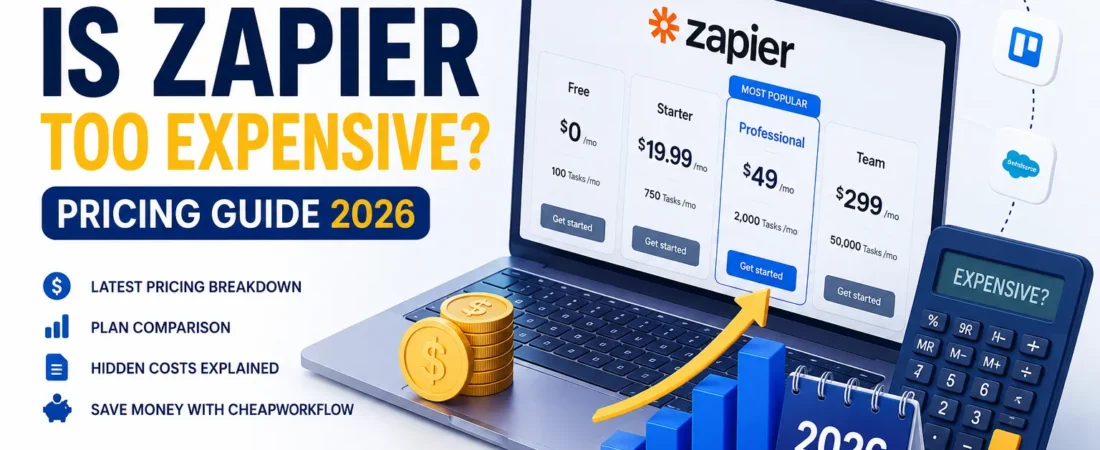
Zapier can be a useful automation platform, but whether it represents good value depends on how your workflows run, how many successful actions they perform, and how much time the automation actually saves.
Published: August 31, 2026
Updated: August 31, 2026
Review: Pricing and product details should be verified before purchase
Check Your Own Numbers
Estimate the potential savings and payback period of an automation before choosing a platform. Use the ROI Calculator →
How We Approach Reviews
Learn how CheapWorkflow approaches software evaluation, pricing verification, evidence, and editorial transparency. Read Our Methodology →
TL;DR
Table of Contents
- Zapier’s Free plan currently includes 100 tasks per month and two-step Zap workflows. It is useful for learning and testing simple automations, but the task allowance and workflow limits can be restrictive for ongoing multi-step use.
- Zapier’s Professional plan currently starts at $19.99/month when billed annually and includes 750 tasks per month. Team currently starts at $69/month when billed annually.
- A successful billable action in a Zap generally consumes one task. Triggers do not consume tasks, and several built-in Zapier steps such as Filters, Paths, Formatter, Delay, and Looping are excluded from normal task usage.
- Whether Zapier is expensive depends less on the headline subscription price and more on your workflow volume, successful actions, team needs, and the value of the work being replaced.
Pricing note: Zapier pricing, plan limits, billing rules, and included features can change. The figures discussed here were checked against Zapier’s published information available in August 2026. Verify the current pricing and plan terms directly with Zapier before subscribing.
The question “Is Zapier too expensive?” is rarely just about the number shown on a pricing page. The more useful question is whether the total cost of using Zapier makes sense for the work you want it to replace.
A small team might happily pay for a tool that removes several hours of repetitive work every week. Another team might find the same subscription hard to justify because its workflows run only occasionally or because its automation needs are very simple.
That is why a simple plan comparison is not enough. This guide explains how Zapier’s current pricing model works, what drives task usage, where costs can increase, and how to decide whether the platform represents good value for your particular workflow.
How Zapier Pricing Works
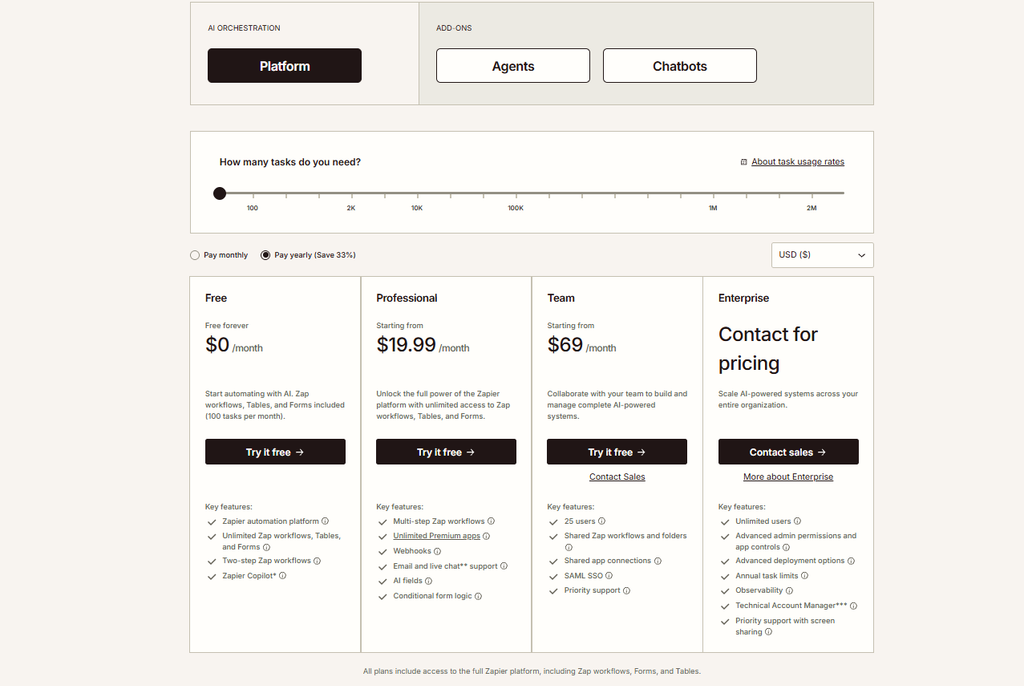
Zapier’s pricing for Zap workflows is closely tied to task usage. A task is generally a successful action that runs in Zapier. The exact task rate can differ for some Zapier products and features, so task usage should be checked against the current documentation for the workflow you are building.
| Plan | Current starting price | Task allowance | Key point |
|---|---|---|---|
| Free | $0 | 100 tasks/month | Two-step Zap workflows and one user |
| Professional | From $19.99/month, billed annually | 750 tasks/month | Multi-step workflows and premium apps |
| Team | From $69/month, billed annually | Plan-specific | Collaboration, shared resources, roles and permissions |
| Enterprise | Custom | Custom | Enterprise administration, governance and support |
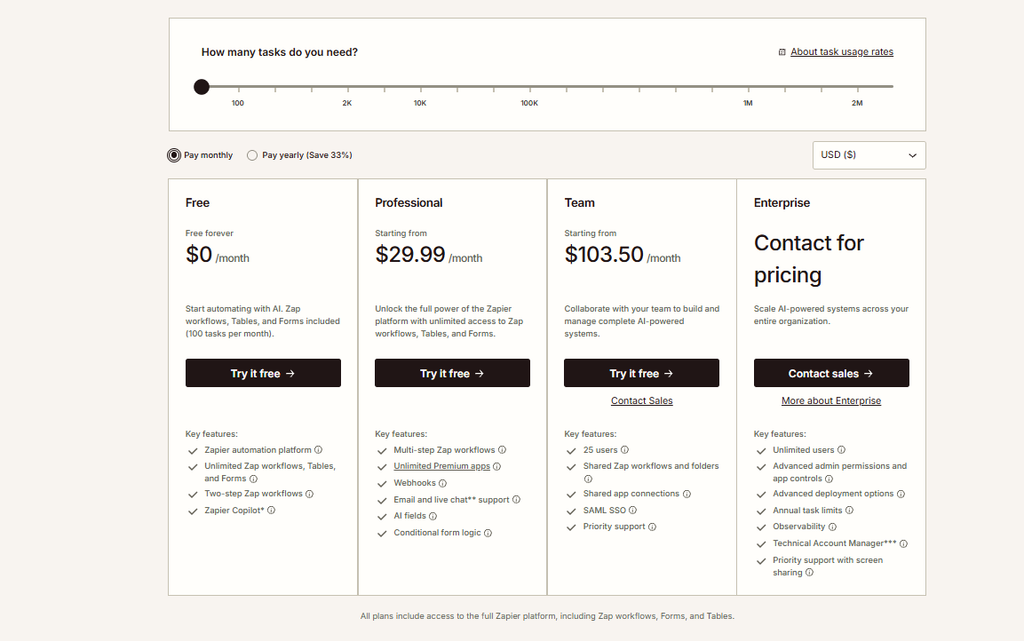
The Professional starting price is an annual-billing figure. Zapier also offers monthly billing, which costs more than the annual equivalent. For example, Zapier’s official pricing information lists Professional from $19.99/month billed annually and from $29.99/month on monthly billing.
Team pricing similarly starts at $69/month when billed annually. Your actual cost can depend on the task tier, billing cycle, plan configuration, and other account requirements.
What Counts as a Task?
This is the part of Zapier pricing that matters most when estimating a real workflow.
Zapier states that successful action steps in a Zap count toward task usage. Triggers themselves do not consume tasks. Several built-in steps also do not normally count toward task usage, including Filters, Paths, Formatter, Delay, Looping, Digest, and some other Zapier-native tools.
That means you should not simply count every visible step in a Zap and assume every step is billable.
Hypothetical example
Imagine a workflow that starts when a new lead submits a form, then creates a CRM record, sends an email, and posts a Slack notification.
If those three external actions each count as one successful task, a single successful run would use three tasks.
If that workflow runs 200 times in a month, the calculation would be: 200 × 3 = 600 tasks.
This is a calculation example, not a prediction of how every Zapier workflow will be billed. Some Zapier products use different task rates, so check the current documentation for the specific workflow.
Triggers do not normally consume tasks
Zapier’s documentation states that trigger steps do not use tasks. Polling a connected app to check whether a trigger event exists also does not itself consume tasks. Tasks are used when successful actions are performed.
Built-in logic can be free of normal task usage
Filters and Paths are examples of built-in workflow logic that do not normally count as tasks. Zapier also lists tools such as Formatter, Delay, Looping, Digest, Storage, and related native functionality among steps that do not count toward standard task usage.
Successful actions matter
Zapier defines a task around a successful action. Some special products or features use different task rates, so avoid assuming that every product inside the Zapier ecosystem follows exactly the same one-to-one rule.
What Actually Determines Your Monthly Cost?
The subscription price is only the starting point. Your real cost is influenced by how your workflows behave.
1. Workflow frequency
A workflow that runs 20 times per month behaves very differently from one that runs thousands of times. Frequency is often the biggest driver of task consumption.
2. Successful actions per run
A simple workflow with one successful external action can use much less task capacity than a workflow that performs several successful actions every time it runs.
This is why counting workflows alone is not enough. Two businesses could have the same number of Zaps while using dramatically different amounts of task capacity.
3. Workflow design
A workflow does not become expensive simply because it is advanced. The important question is which steps actually consume tasks and how frequently those steps run.
Built-in logic such as Filters and Paths can help you control workflow behavior without automatically adding normal task usage for those specific steps.
4. Team requirements
A solo operator and a collaborative team may have completely different plan requirements. If several people need to build and manage automations together, collaboration features can become an important part of the cost decision.
5. The value of the work being replaced
The most useful comparison is not Zapier versus zero. It is the cost of Zapier versus the value of the manual work being removed.
If an automation costs $30 per month but reliably removes many hours of repetitive work, the subscription may be inexpensive relative to its benefit. The opposite can also be true: an automation may technically work while providing too little time savings to justify the expense and maintenance.
A Worked Example
Consider a hypothetical small business that receives online orders and wants to automate three actions:
- Create or update a customer record in a CRM.
- Send a confirmation through an email platform.
- Notify the team in Slack.
Assume the workflow completes those three actions successfully each time and receives 200 orders during the month.
Hypothetical calculation
200 workflow runs × 3 successful actions = 600 tasks
This does not mean the business will necessarily pay a particular amount. It simply estimates the task consumption created by this example under the standard one-task-per-successful-action model.
Now imagine the business adds a second workflow for abandoned-cart follow-ups. If that workflow performs two successful external actions on each of 150 events, that would represent another 300 tasks.
Combined, the two hypothetical workflows would consume 900 tasks in the month: 600 + 300 = 900.
The point of the exercise is not that 900 tasks is necessarily expensive. The point is that actual usage can be very different from the number of workflows a business initially expects to build.
What Happens When You Reach Your Task Limit?
This is one place where older Zapier pricing articles can now be misleading.
On current paid plans, Zapier supports pay-per-task billing. When an eligible paid account exceeds its included task limit, additional successful tasks can be billed separately for the remainder of the billing period, subject to the account’s configuration and applicable limits.
Zapier’s current documentation says that the maximum pay-per-task usage is tied to three times the selected plan’s task limit. For a Professional 750 plan, for example, the maximum total task usage under this mechanism is 2,250 tasks: the original 750 plus up to 1,500 additional tasks.
Account owners can also disable pay-per-task billing on eligible plans. If it is disabled, Zap runs can instead be held after the plan’s task limit is reached until the relevant billing or plan conditions change.
Important: Do not assume that reaching your included task limit always means your automations immediately stop. The current behavior depends on whether pay-per-task billing is enabled and on the plan/account configuration.
Who Gets Good Value From Zapier?
Zapier can be a sensible choice when the platform’s capabilities match the workflow and the resulting subscription cost is small compared with the value created.
Businesses with useful multi-app workflows
If your process needs to move information between several applications, use conditional logic, or coordinate multiple business systems, a mature automation platform can save substantial manual work.
Businesses with high-value low-volume automations
Low task volume does not necessarily mean low value. A workflow that runs only a few times each month can still make economic sense if every successful run removes a significant amount of manual work.
Teams already invested in working automations
Switching automation platforms has a cost of its own. Existing workflows have to be rebuilt, tested, documented, and monitored. A modest subscription difference may not justify migration if the existing setup is reliable and valuable.
Businesses that need broad app coverage
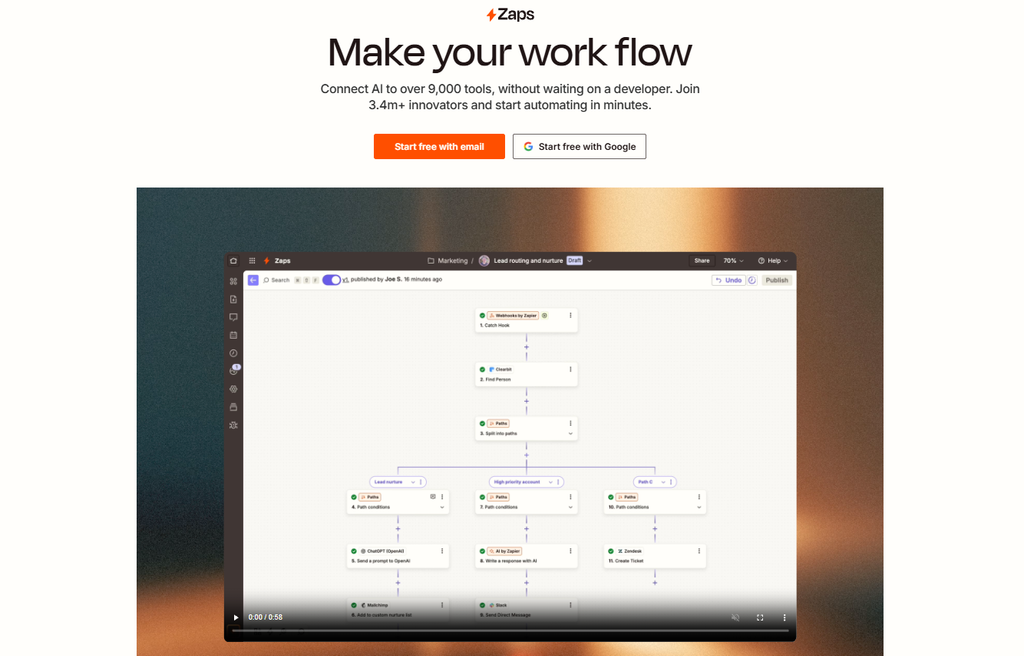
Zapier currently advertises more than 9,000 app integrations. That breadth can matter when a business relies on less common software, although the useful question is always whether the specific applications in your own stack are supported.
Who Should Compare Alternatives?
Looking at alternatives makes sense when Zapier’s pricing model or feature set does not align with your actual workflow requirements.
High-volume, straightforward workflows
If you run a large number of simple automations, compare how different platforms charge for that usage. A different pricing model may fit your workload better.
Very small automation budgets
If your automation budget is tightly constrained, even a modest recurring subscription deserves an ROI check. Sometimes simplifying a workflow is a better answer than adding a more expensive platform.
Predictability matters more than flexibility
Some businesses prefer a pricing structure that is easier to forecast as usage grows. If your task volume changes significantly from month to month, compare the total expected cost under the pricing models available to you.
Your current workflows do not need advanced capabilities
If your automation needs are limited to a few simple connections, it is reasonable to compare simpler tools rather than paying for capabilities you will not use.
How to Calculate Whether Zapier Is Worth It
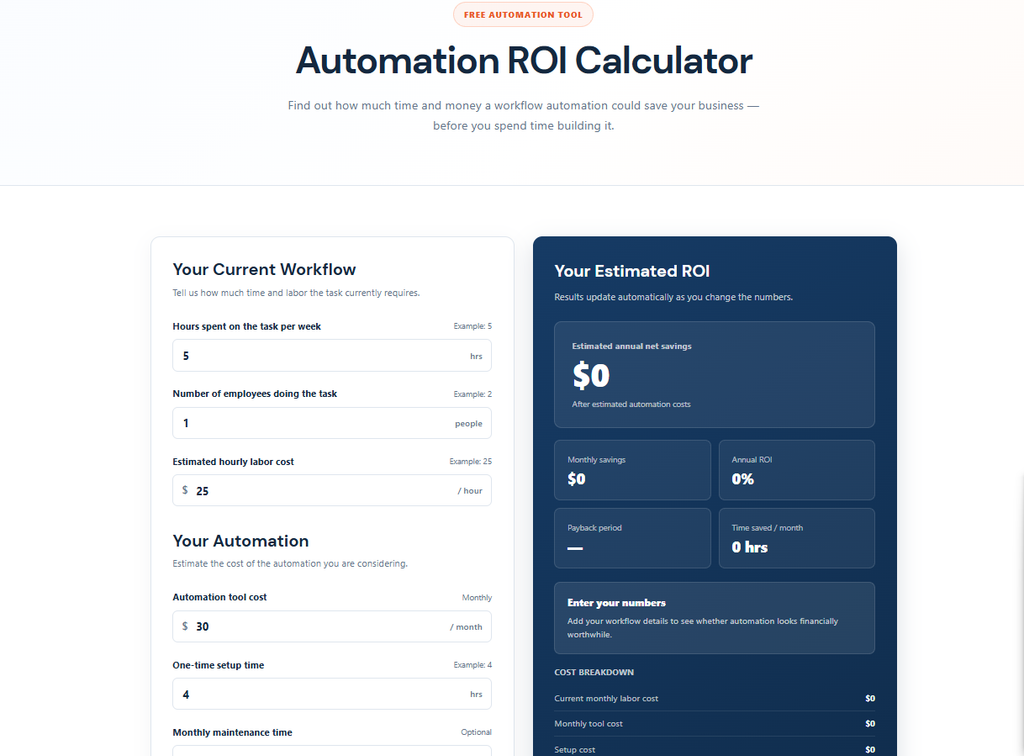
The simplest way to make the decision is to compare the cost of the automation with the value of the work it replaces.
Step 1: Estimate your workflow volume
For each workflow, estimate the number of successful runs you expect per month.
Step 2: Count the successful billable actions
Identify the actions that actually consume task usage. Do not automatically count triggers, Filters, Paths, or other steps that the current Zapier documentation excludes from normal task usage.
Step 3: Estimate your task consumption
A simple starting calculation for standard actions is:
Basic calculation
Monthly workflow runs × successful billable actions per run = estimated monthly tasks
Step 4: Compare the plan cost with the value created
Estimate how many hours the automation could realistically save and assign a reasonable value to that time.
For example, if an automation saves 10 hours per month and you value that time at $25 per hour, the estimated monthly value is $250.
That does not mean the automation is automatically worth $250 per month. You still need to subtract software costs, maintenance, monitoring, setup effort, and any remaining manual work.
Step 5: Include the cost of switching
If you are already using Zapier, include migration time in the comparison before deciding that a cheaper alternative is automatically better.
Our Automation ROI Calculator can help you estimate the potential economics of an automation before you commit to building it.
Zapier vs. Alternatives: What Actually Matters
A cheaper monthly subscription is not automatically a better deal. When you compare Zapier with another platform, look at the complete workflow economics.
- Pricing model: Understand whether you are paying for tasks, runs, seats, or another usage metric.
- Specific app support: Verify the actual applications your business relies on.
- Ease of setup: A lower subscription price is less attractive if the system takes significantly longer to configure.
- Maintenance: Consider how easy it is to understand and repair failures.
- Support: Check what support is available on the plan you would actually purchase.
- Growth: Estimate what the cost looks like if your automation volume doubles or triples.
Depending on the workflow, alternatives you may want to research include Make, n8n, and Pabbly Connect. Each has different pricing structures, features, and technical trade-offs. None should be considered universally better without looking at the specific workflow.
Questions to Ask Before You Subscribe
- How many successful automation runs do I expect each month?
- How many billable actions occur in each run?
- Which steps in my workflow are actually counted as tasks?
- What happens if I reach my included task limit?
- Is my usage likely to grow significantly?
- What amount of staff time will the automation realistically save?
- What will monitoring and maintenance require?
- Would a simpler tool solve the same problem?
- Would keeping the process manual actually be cheaper?
Our Editorial Approach
CheapWorkflow approaches automation pricing from the perspective of the business problem first and the software second.
That means we are interested in more than a headline subscription price. We look at how a pricing model behaves under realistic usage, what assumptions a buyer needs to make, and what limitations could change the economics.
For current pricing and product mechanics, we prioritize official vendor documentation. Because software pricing changes, readers should verify current terms before purchasing.
You can read more about our editorial and evaluation approach on our methodology page .
The Bottom Line
Zapier is not automatically expensive, and it is not automatically cheap. Its value depends on what your workflows do, how often they run, which actions they perform, and what the automation replaces.
The most useful calculation is therefore not “How cheap is the plan?” but: “What does this automation cost me, and what does it save me?”
Estimate your usage before subscribing. Then compare that cost with the time and operational value the automation could realistically create.
Frequently Asked Questions
Is Zapier free?
Yes. Zapier currently offers a Free plan with 100 tasks per month, one user, and two-step Zap workflows. It can be useful for learning the platform and testing simple automations, although the task allowance and workflow limits may be too restrictive for ongoing multi-step business use.
How does Zapier task pricing work?
Zapier generally counts successful billable action steps as tasks. Triggers do not consume tasks, and several built-in steps such as Filters, Paths, Formatter, Delay, and Looping are excluded from normal task usage. Some Zapier products use different task rates, so the current documentation should be checked for the workflow you are using.
Why can Zapier become expensive?
Cost can rise as workflows run more frequently or perform more successful billable actions. Your plan requirements can also change as collaboration and usage increase. The most useful way to judge the cost is to compare the expected software expense with the value of the manual work being replaced.
Is Zapier worth it for a small business?
It can be, depending on your workflows. Estimate your task consumption, compare the plan cost with the time saved, and consider setup and maintenance. A small business with valuable repetitive work may get strong value from Zapier, while another business with very low-volume or very simple needs may prefer a simpler or cheaper option.
What happens when I exceed my Zapier task limit?
On eligible paid plans, Zapier supports pay-per-task billing, which can allow additional successful tasks to run after the included limit is reached. The exact behavior depends on the plan and account settings. Pay-per-task billing can also be disabled, in which case Zap runs may be held after the task limit is reached.
How can I estimate my Zapier costs?
Start by estimating how often each workflow will run and how many successful billable actions it performs per run. Multiply those figures to get an initial task estimate, then compare the result with the current Zapier plan options. Finally, compare the subscription cost with the staff time and other value the automation is expected to create.
Before You Automate, Check the Numbers
Estimate the potential savings and payback period of your workflow before choosing a platform or investing time in setup. Use the Automation ROI Calculator →
Verification reminder: Software prices, limits, and features may change after publication. Check the vendor’s current pricing and documentation before making a purchasing decision.