

TL;DR
- Task choice matters more than tool choice. Automate the wrong task and no platform will save you – the automation will just run the problem faster.
- Setup time varies widely. A simple two-step connection might take under an hour for someone who’s done it before. A multi-step workflow with exception handling can take a full day or more. A beginner on their first automation should expect a learning curve – possibly a week before it’s stable. The real question isn’t how long it takes to build; it’s how long the task currently takes every week.
- Many tasks aren’t simply manual or automated – they’re automated with human review. Routing unusual cases to a person is often the most realistic option for small businesses, and it’s a legitimate design choice, not a compromise.
- Automations break. Set up failure notifications, check your logs weekly for the first month, assign one person to own each automation, and document the manual fallback before you go live.
Table of Contents
How to Automate Repetitive Tasks: A Practical Guide for Small Teams
Most repetitive tasks aren’t actually hard. They’re just time-consuming – the same steps, the same apps, the same copy-paste, day after day. The reason automation projects fail isn’t usually the tool. It’s that someone picked a task that looked automatable but wasn’t – because it had too many variations, required too much judgment, or was never clearly defined in the first place.
That distinction is where this guide starts. Not with a list of tools, not with a promise about hours saved – with the question of whether the task you have in mind is actually a good automation candidate. Get that right and the rest is mostly execution. Get it wrong and you’ll spend more time maintaining the automation than you would have spent doing the task manually.
This article covers how to identify tasks that automate well, how to build a reliable automation from scratch, what to do when it breaks, and how to measure whether it was worth building. If you’re looking for a broader introduction to workflow automation as a whole, the broader guide to workflow automation for small businesses covers the fundamentals. This article is for when you have a specific task in mind and want to know: is this automatable, and how do I actually do it?
What Makes a Task a Genuine Automation Candidate?

Four characteristics separate tasks that automate reliably from tasks that create maintenance headaches.
It happens the same way every time. The steps don’t change based on who’s doing it, what day it is, or what the input looks like. If your explanation of the process includes “well, it depends,” it’s not ready.
It’s triggered by a clear event. Something specific and identifiable starts the process – a form is submitted, a file is uploaded, a date is reached. Vague triggers (“when a client seems ready”) can’t be automated.
It doesn’t require judgment calls. A competent new hire could follow it from a written checklist with no questions. If the task needs someone to weigh up context or read a situation, it belongs with a human.
It happens often enough to justify setup time. A task that runs twice a year probably isn’t worth building. A task that runs twenty times a day almost certainly is.
Here’s a concrete contrast. “Copying a new form submission into your CRM” is automatable – same steps every time, clear trigger, no judgment, happens frequently. “Deciding which leads to prioritize” is not – it involves context, history, and judgment that no rule can fully capture. The second task might feel more painful, which is exactly the trap. The frustration usually comes from the judgment it requires, and judgment is what automation can’t replace.
One thing worth naming here: many tasks aren’t simply manual or automated. There’s a third option – automated with human review. A form submission can trigger automatic data collection, condition checks, and routing, while unusual cases get flagged for a person to handle. That’s not a failure of automation; it’s a realistic design for messy real-world inputs. Small businesses often get more value from a well-designed partial automation than from trying to handle 100% of cases programmatically. If you’re not sure where your task falls, the full framework for knowing when to hold back covers the cases where automating actually makes things worse.
Repetitive Tasks That Automate Well
These task types consistently work well for repetitive task automation. The format varies – some need a sentence, some need a paragraph, some need a specific failure scenario explained.
New form submission → CRM contact created. The trigger is unambiguous and the data is already structured. The most common failure: if the contact already exists, you’ll create a duplicate. Build in a duplicate-check step, or decide upfront whether you want to update the existing record or skip creation entirely.
Invoice sent when a job is marked complete. Simple, reliable, and saves real time at scale. The risk is human error upstream – if someone marks a job complete by mistake, an invoice goes out. Make sure your team understands what the trigger means before you switch it on.
Appointment reminder 24 hours before a scheduled time. Purely time-based, no judgment required. Where this breaks: if an appointment is rescheduled after the reminder fires, the client gets a reminder for the wrong time. Your automation needs to handle reschedules – either by cancelling the original reminder when the appointment changes, or by sending a corrected one.
Slack notification when a support ticket is created. A simple two-step trigger-and-action that works well at low volume. At high volume, it becomes noise. Add a filter so only certain ticket types or priorities trigger the notification, otherwise your team will start ignoring it.
Weekly report pulled from multiple tools. The schedule is fixed and the data sources don’t change – until they do. If any source tool changes its data structure or API, the report breaks silently. Check the output manually once a month. Don’t just assume it ran correctly because no error was logged.
New customer → onboarding email sequence. Works cleanly when every customer follows the same path. If you have different onboarding tracks for different customer types, you need conditional logic to route them correctly – or separate automations for each track. Trying to handle multiple tracks in a single automation without clear branching is one of the most common sources of onboarding emails going to the wrong people.
File moved to the correct folder when uploaded. The rule is simple: file type or name determines the destination. Build a catch-all folder for anything the rule doesn’t recognize, and check it weekly. Files with unusual names or formats will land there, and you need to know about them.
Task created when an email with a specific subject line arrives. Works when the trigger is exact. The problem is that subject lines aren’t always consistent – people slightly vary the wording, add “Re:” or “Fwd:”, or use different capitalization. Use a keyword match rather than an exact string, and test with realistic variations before going live.
Lead assigned to a sales rep based on territory or deal size. Routing rules are clear and consistent – until they change. When your territory definitions are updated, the automation keeps routing by the old rules until someone remembers to update it. Document the routing logic somewhere visible, and include “update automation” in your process for any territory change.
Contract sent for signature when a deal reaches a specific stage. High-value and high-risk. Test this carefully. Sending a contract to the wrong person because a deal stage was updated in error is a real problem – one that’s hard to walk back. Run it in test mode with multiple scenarios before going live, and consider adding a short delay so someone can catch a mistake before the contract fires.
How to Automate a Repetitive Task: 5 Steps
We’ll run one example through all five steps: a new client inquiry comes in via web form. Right now, someone reads the email, copies the details into the CRM, sends a reply, and pings the sales rep in Slack. It takes about 10 minutes per inquiry and happens 15 times a week. That’s 2.5 hours of manual work that could be eliminated.
Step 1 – Choose the Right Task
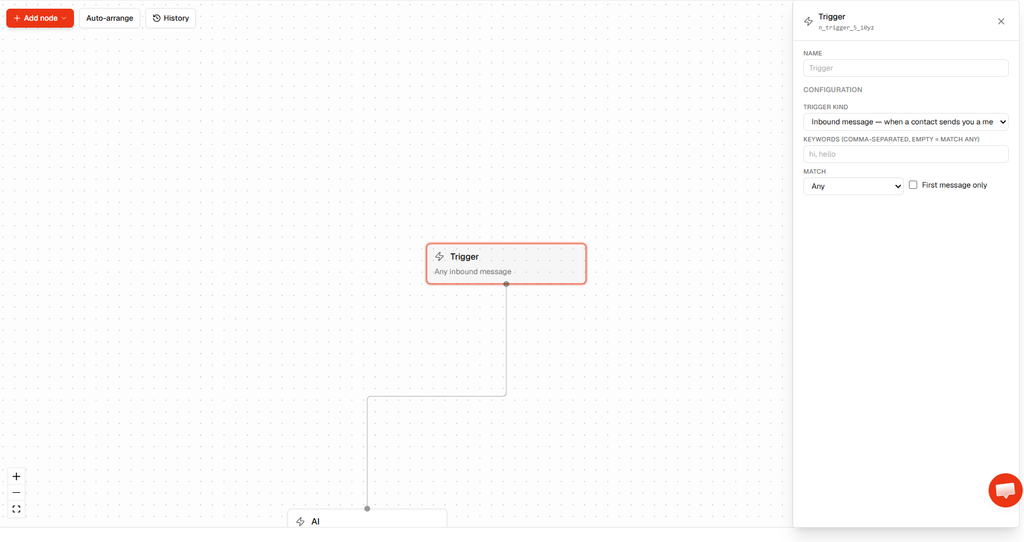
Before you open any automation tool, make sure the task passes the four criteria above. Our example does: same steps every time, triggered by a form submission, no judgment required, frequent enough that the math is obvious.
There’s a concept worth naming here: automation debt. It’s what happens when you automate a messy, inconsistent process. The automation doesn’t fix the mess – it runs the mess faster, at scale, and makes it harder to spot. If your form submissions are inconsistent, your CRM data is patchy, or your team handles inquiries differently depending on who’s on shift, fix those things first. Then automate.
If you’re not sure whether a specific task is ready, find out in about two minutes – the quiz walks you through the key criteria and gives you a clear answer before you spend time building anything.
Step 2 – Map the Current Process
Write down every step of the current manual process. Not a summary – every step.
For our example: form submitted → notification email arrives in shared inbox → team member reads it → copies name, email, company, and message into CRM → creates a new contact record → writes and sends a reply email → sends a Slack message to the sales rep with the lead’s details.
This is your baseline. Two things to do with it: time yourself doing it once – that’s your benchmark for measuring improvement later. And look for anything that varies. Does the reply email change depending on what the inquiry is about? Does the sales rep assignment depend on territory? Those are the edge cases you need to plan for in the next step.
Step 3 – Define the Trigger, Rules, and Actions
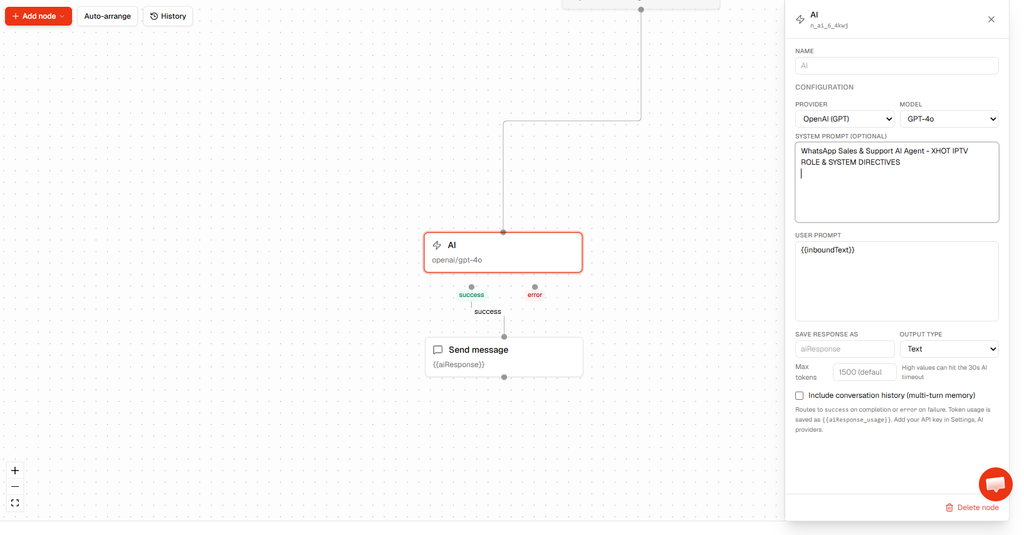
Every automation workflow has a trigger – the event that starts it – and one or more actions that follow. Being explicit about both before you build anything saves a lot of debugging later.
For our example:
- Trigger: New form submission received
- Action 1: Create a contact in the CRM with the form fields mapped to the right CRM fields
- Action 2: Send a confirmation email to the submitter using a template
- Action 3: Post a message in the Slack sales channel with the lead’s name, email, and inquiry
Now think through what happens when the normal case doesn’t happen. What if the form is submitted without a phone number? Your CRM contact still gets created – you just leave that field blank, which is fine. What if the email address is missing entirely? That’s not fine – your confirmation email will fail. Decide now: does the automation stop and flag the record for manual review, or does it proceed without sending the email?
What if the CRM contact already exists? Do you update the existing record, skip creation and just trigger the email and Slack notification, or create a duplicate? What if the Slack channel is archived? What if the CRM API times out?
These aren’t hypotheticals. They’re the scenarios that break automations in production. Deciding how to handle them now – even if the answer is “flag it for manual review” – is far better than discovering them at 9am on a Monday when a client emails asking why they never got a reply. For many small businesses, the right answer is a catch-all: unusual cases get routed to a review queue where someone handles them manually. That’s a legitimate design choice, and it’s often more reliable than trying to automate every edge case.
Step 4 – Build and Test
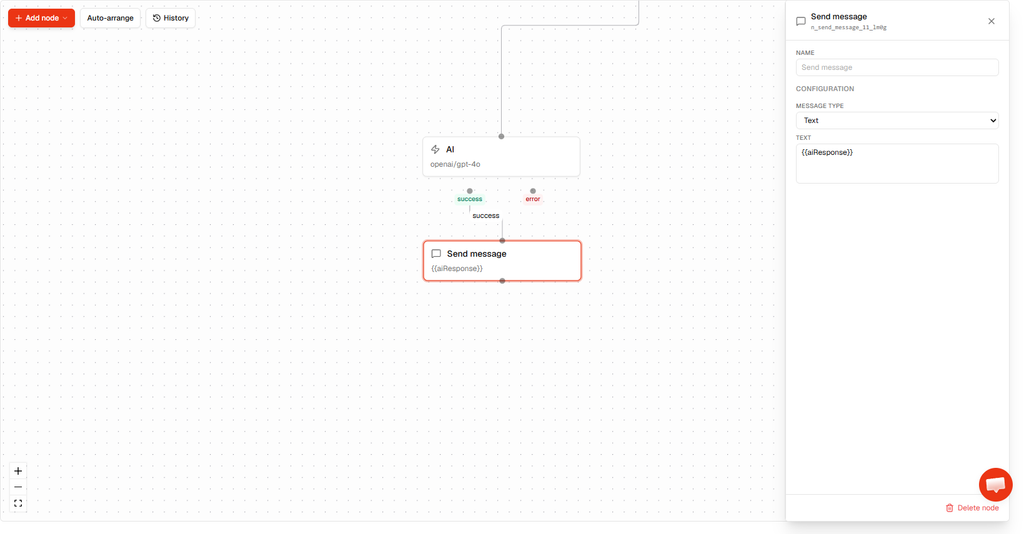
Start with a no-code builder. Most platforms let you select your trigger app, choose the trigger event, then add actions one at a time. You don’t need to write code for any of the examples in this article.
On testing: don’t use raw customer data. Instead, create realistic test cases that represent real-world conditions – controlled records that include the kinds of inputs that cause problems: a name with an apostrophe, an email address with a plus sign, a message that’s unusually long, a form submission with a required field left blank. These are the inputs that expose formatting problems and broken field mappings. Real customer data carries privacy risk and is often too clean to reveal the edge cases anyway.
Use test mode if your platform has it. Most no-code tools let you run an automation in test mode before it goes live – it fires the trigger and shows you what each action would do without actually doing it. Then check the output at the other end. Don’t just verify that the automation ran – open the CRM and check the contact record. Open the email that was sent. Check the Slack message. The automation can complete without errors and still produce wrong output if a field mapping is off.
On timing: if the automation handles something important to customer communication, launch when someone is available to monitor it for the first hour. A Friday afternoon is rarely ideal – if something breaks, it can sit unnoticed until Monday morning, by which time a day and a half of submissions may have gone unprocessed.
Step 5 – Monitor, Measure, and Improve
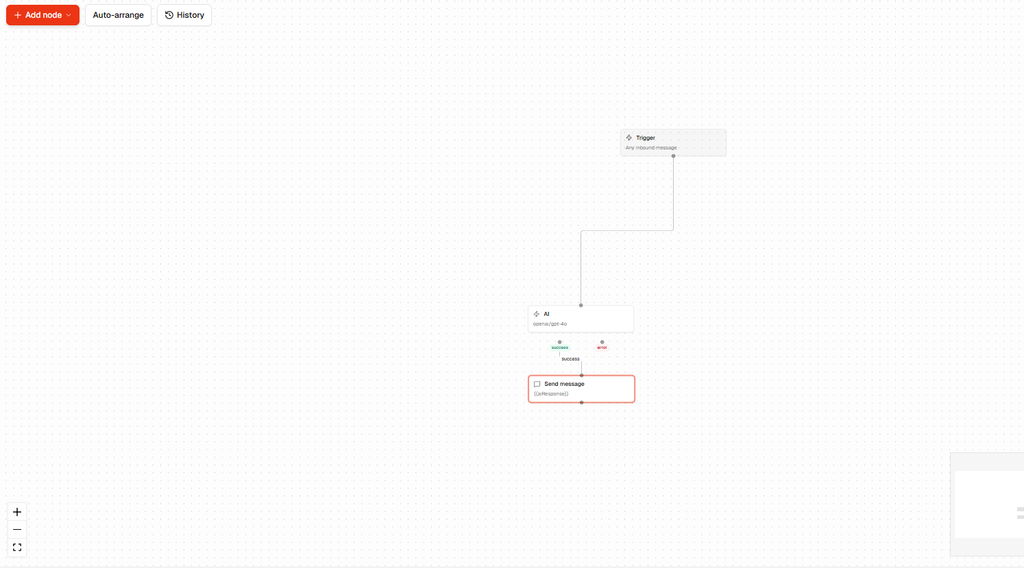
Automations break. Not because you built them badly, but because the world changes around them. Apps update their APIs. Field names get renamed. A form adds a new required field. A CRM updates its contact schema. Any of these can silently break an automation that was working fine last week.
Set up failure notifications if your platform supports them. You want to know within minutes if an automation fails, not when a client emails asking why they never got a reply.
Assign an owner. Not “the team” – one specific person who knows: what the automation does, which apps it connects, what triggers it, where failures appear, how to disable it, and what the manual fallback is. If that person leaves, the knowledge leaves with them unless it’s documented.
Document the manual fallback. Every customer-facing automation should have a written answer to: what does the team do if this stops working? How do they identify missed items? How do they process them manually? This takes 20 minutes to write and saves a genuine crisis.
Measure it. The only way to know whether an automation was worth building is to compare it against what it replaced. Before you go live, record: time spent per instance, how often it runs per week, error rate, and any delays it causes. After a month, check: average execution time, failures per week, manual interventions needed, maintenance effort. If the automation is saving 2.5 hours a week and requires 15 minutes of maintenance, it’s working. If it’s saving 30 minutes and generating an hour of exception handling, it isn’t.
For rolling this out across multiple processes or a whole team, the full implementation guide covers how to prioritize, document, and avoid ending up with a tangle of automations nobody understands.
What to Do When the Normal Case Breaks
Even well-built automations encounter situations they weren’t designed for. Here’s how to handle the most common ones in production.
Missing required fields. If a trigger fires but a downstream action needs data that isn’t there – no email address, no company name, no deal value – the automation will either fail or produce a bad record. The fix is to add a condition check before the action: if the required field is empty, route the record to a manual review queue instead of proceeding. Don’t let the automation guess.
Duplicate records. Form submissions, webhook triggers, and manual re-runs can all create duplicates. Before creating a new CRM record, check whether a record with that email address already exists. If it does, decide: update it, skip creation, or flag it. Most platforms support a “find or create” step that handles this cleanly.
Failed API calls. When a downstream app is temporarily unavailable, the automation will fail at that step. Good platforms retry automatically – usually two or three times over a few minutes. Check your platform’s retry settings and make sure they’re enabled. For critical automations, add a fallback action: if the primary action fails after retries, send an alert to the owner so they can handle it manually.
Cancelled or rescheduled appointments. If your automation fires a reminder or sends a document based on a scheduled event, you need to handle cancellations. Either build a cancellation trigger that stops or reverses the original automation, or add a condition check at the time of sending: is this appointment still active? If not, skip.
Unexpected file formats or changed field names. If an upstream tool changes the name of a field – even just capitalisation – your automation will stop finding the data it expects. This is one of the most common silent failures. Set up a monthly check: run a test record through the automation and verify the output is correct. Don’t wait for a client to tell you something broke.
The catch-all queue. For any automation that handles variable inputs, build a catch-all: a folder, a spreadsheet row, a Slack message, or a task – somewhere that unusual cases land so a person can review them. Check it regularly. If items are piling up there, it’s a signal that the automation’s rules need to be refined.
Common Mistakes
Automating a broken process. If the manual process is inconsistent or poorly defined, the automation will reproduce those errors faster and at scale. A team that was manually catching data entry mistakes every few days will now have hundreds of bad records before anyone notices. Map the process, fix the gaps, then automate.
Picking a task with too many exceptions. An automation that handles 80% of cases correctly and sends the other 20% into chaos isn’t saving time – it’s creating a two-track system where someone has to manage both the automated output and the fallout. A high exception rate is a warning sign that the task isn’t ready. Rather than applying a fixed threshold, look at the economics: if the manual intervention required to handle exceptions is approaching the time the automation saves, the task needs more definition before it gets automated. Either tighten the process or build exception handling into the automation itself.
Testing with data that’s too clean. Controlled test data is always tidier than real-world input. It has no apostrophes in names, no unusually long messages, no email addresses with unusual formatting. Use realistic test cases that include the kinds of inputs that cause problems – anonymized or invented records that represent actual edge cases. The goal is to break the automation in testing, not in production.
No manual fallback. Before you go live, answer: who gets notified when this fails, what’s the manual process for handling missed items, and how does the team identify what was skipped? This takes 20 minutes to think through and prevents a genuine crisis.
Building too many automations at once. The enthusiasm after your first working automation is real, and it’s a trap. Build five simultaneously and you end up with a web of interdependencies nobody fully understands, thin test coverage across all of them, and a debugging nightmare when something breaks. Build one, get it stable, document it, then move to the next.
How Long Does This Actually Take?
There’s no authoritative benchmark for automation setup time – it depends too much on the platform, the complexity of the task, and whether you’ve done it before. Here’s an honest range based on practitioner experience:
A simple two-step automation – form submission triggers an email confirmation – might take under an hour for someone who’s used the platform before. A three- or four-step automation workflow with conditional logic and duplicate checking is more likely to take two to four hours, most of which is mapping edge cases and testing them properly. A multi-step workflow with branching logic, failure handling, and fallback actions is a real build – expect half a day to a full day.
The learning curve matters. If this is your first automation, expect to spend time understanding how the platform works, not just building the specific flow. A beginner on a simple workflow might spend a week before it’s stable and tested. An experienced user might do the same connection in 30 minutes.
The question to ask isn’t “how long will this take to build?” – it’s “how long is this task currently taking every week?” If it’s 2.5 hours per week and the build takes 4 hours, you’ve paid for it in under two weeks. If it’s 20 minutes a week and the build takes a full day, the math doesn’t work. Pick a different task.
Choosing the Right Automation Approach

The tool matters less than the task. A good automation on the wrong task will fail. A simple automation on the right task will succeed with almost any tool. That said, here’s how to think about the options:
No-code integration platforms – tools like Zapier, Make, and others – connect cloud apps through a visual builder with no code required. These are the right starting point for the vast majority of small business use cases: connecting your form tool to your CRM to your email platform to Slack. The trade-off is cost at scale – most charge per task or per automation run, which adds up as volume grows. CheapWorkflow is built for small teams who want straightforward automations at a predictable monthly cost.
Built-in automation in tools you already use. Many CRMs, email platforms, and project management tools have native automation built in. Before buying a separate integration platform, check whether your existing tools can handle it. HubSpot, ActiveCampaign, Notion, and Asana all have automation features that cover common use cases without adding another subscription. Start here.
Scripting for technical users. Python scripts, shell scripts, and tools like Google Apps Script are more flexible than no-code platforms and often free. They’re also harder to maintain and harder for non-technical teammates to understand or fix. Only go this route if you have someone who can own it long-term – and who will still be around when something breaks six months from now.
One honest note: start with what you already have before buying something new. The best automation tool is the one your team will actually use and maintain.
Frequently Asked Questions
Frequently Asked Questions
What’s the difference between a repetitive task and an automatable task?
All automatable tasks are repetitive, but not all repetitive tasks are automatable.
The distinction is in the structure. A task that follows the exact same steps every time, triggered by a clear event, with no judgment required – that’s automatable.
A task that happens repeatedly but varies based on context, requires someone to make a call, or has inputs that change shape each time – that’s repetitive but not ready to automate.
A useful test: could a competent new hire follow it from a written checklist with no questions?
If yes, it’s a candidate.
If your explanation needs “well, it depends” more than once, it isn’t.
Can I automate only part of a task?
Yes – and for many small businesses, that’s the most realistic approach.
You don’t have to automate 100% of a process to get value from it.
Automate the data collection and routing, then have a person handle the review and decision.
Automate the reminder, then have a person handle the follow-up.
This “automated with human review” model is often more reliable than trying to handle every edge case programmatically.
It’s a legitimate design choice, not a compromise.
Do I need to know how to code?
No – for most small business use cases, you don’t.
No-code platforms use visual builders where you connect apps and define rules without writing a line of code.
If you can follow a recipe, you can build a basic automation.
The harder part is understanding your own process well enough to define the trigger, the actions, and the edge cases.
That’s a thinking problem, not a technical one.
What happens when an automation breaks?
It depends on whether you’ve planned for it.
If you’ve set up failure notifications, you’ll know within minutes – your platform sends an alert, you investigate the logs, and you fix or manually handle whatever was missed.
If you haven’t, you find out when a client emails asking why they never got a response.
Enable failure alerts in your platform’s settings.
Check your run logs weekly for the first month.
Have a manual fallback documented for every automation that touches something customer-facing.
How do I know if a task is ready to automate?
Run it through the four criteria: same steps every time, clear trigger, no judgment calls, frequent enough to justify setup.
If you want a more structured assessment, the free automation readiness quiz walks you through the key questions and gives you a clear answer before you invest time building anything.
Can I automate tasks across different apps?
Yes – that’s exactly what integration platforms are built for.
As long as your apps have integrations available (most modern cloud tools do), you can connect them and automate the handoffs between them.
If a direct integration doesn’t exist, most platforms support webhooks as a fallback, which covers a wide range of additional tools.
Check your platform’s integration directory before committing to make sure your specific stack is covered.