
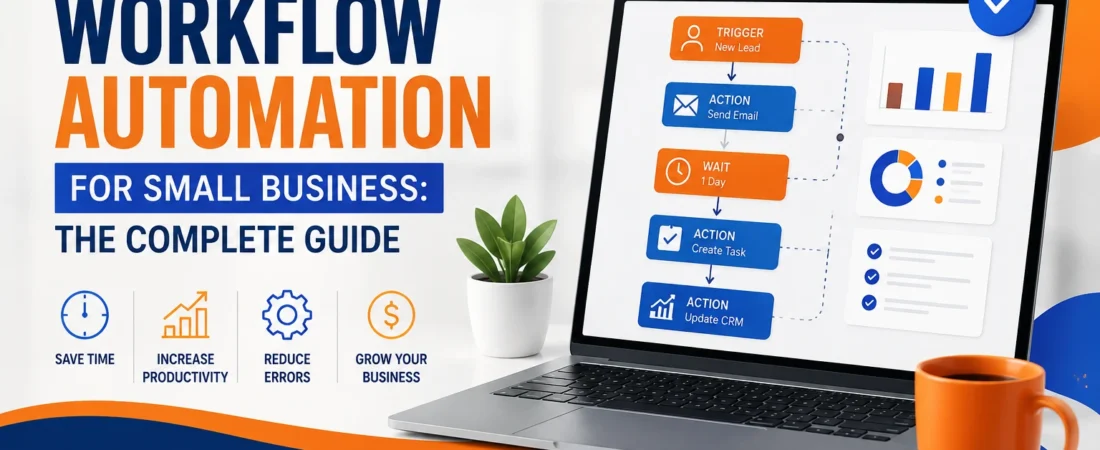
Workflow automation can take repetitive work off your team’s plate without requiring a large IT department, expensive software, or advanced programming skills. This guide explains what workflow automation is, which processes are worth automating first, how to choose the right tools, and how to build your first reliable workflow without creating another system your team has to babysit.
TL;DR
- Workflow automation for small business means using software to handle repetitive work automatically when a defined event occurs.
- The average organization saves around $46,000 per year from automation; 62–71% of small businesses report it paid for itself within 12 months (Goldman Sachs 10,000 Small Businesses, 2024).
- Start with one process, not ten. Lead follow-up, invoice reminders, and employee onboarding deliver the fastest returns.
- Before you build anything, run the 3-question audit below – automating a broken process just makes the problem faster.
- Automation won’t replace your team. It removes the tasks they hate, so they can focus on the work that actually needs them.
What Workflow Automation Actually Is — And What It Isn’t
Workflow automation sounds more complicated than it really is.
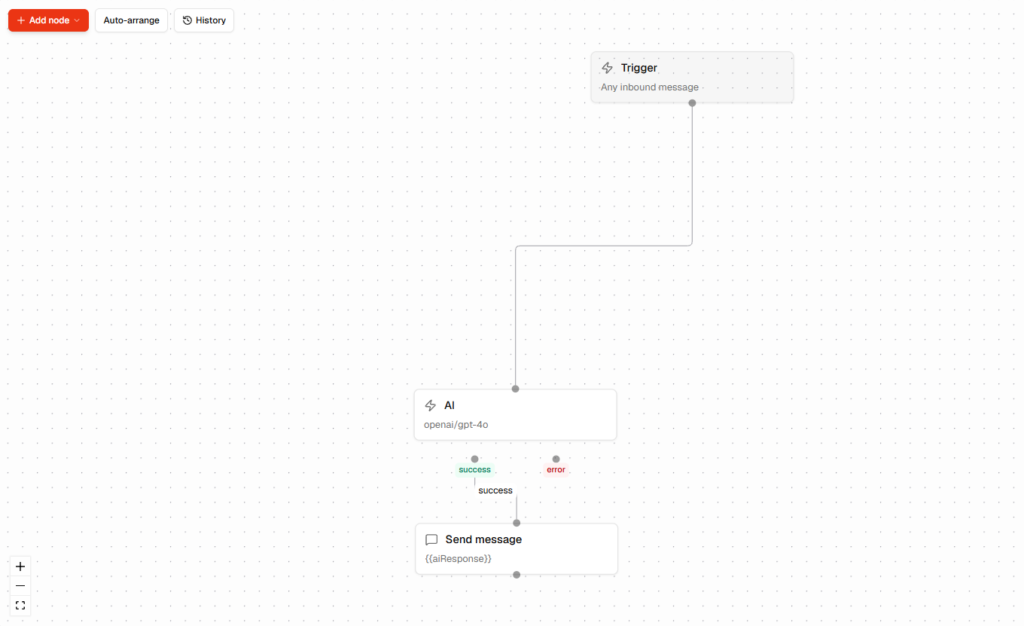
At its simplest, workflow automation means setting up software to perform a repetitive task automatically when something specific happens.
Trigger → Action
A form gets submitted. That’s the trigger.
The software creates a CRM contact, sends an email, and notifies the salesperson. Those are the actions.
That’s really it.
For example, imagine someone fills out the contact form on your website at 11:47pm. Nobody on your team is working at that time. With a basic workflow, the contact can still be added to your CRM, a confirmation email can be sent, and the salesperson can receive a notification.
Nobody had to remember to do it manually.
And that distinction matters because workflow automation isn’t the same thing as AI.
You don’t need machine learning or an AI agent for most everyday business automations. A large number of useful workflows are simply rules:
When X happens, do Y.
A new lead comes in? Add it to the CRM.
An invoice becomes overdue? Send a reminder.
A new employee is added? Start the onboarding checklist.
It’s predictable software logic — and for many business processes, predictable is exactly what you want.
Why Small Businesses Can Benefit So Much
Large companies can sometimes absorb inefficient processes because they have more people, more departments, and more resources.
Small businesses often don’t have that luxury.
If someone forgets to follow up with a prospect, you might lose the sale.
If invoices aren’t chased, cash flow can become tighter.
If customer tickets sit in the wrong inbox, customers become frustrated.
And if the owner spends half of Friday copying information between spreadsheets, that’s time that could have gone toward selling, planning, improving the product, or serving customers.
That’s where automation becomes useful.
It doesn’t magically make a business better. It removes some of the repeated work that doesn’t need a human every single time.
The Real Cost of Doing It Manually
Saying “manual work wastes time” is easy.
The more useful question is: how much is it actually costing your business?
A 2022 Formstack survey of 2,000 knowledge workers found that 51% reported spending at least two hours per day on repetitive tasks. The survey covered employees at organizations with more than 100 employees, so it should not be treated as a direct measurement of every small business. Still, it illustrates how much time repetitive work can consume.
Let’s use a simple example instead of getting lost in statistics.
Suppose five employees each spend two hours every working day on repetitive administration.
That might include:
- Copying customer information
- Updating spreadsheets
- Sending follow-up emails
- Sorting support tickets
- Building recurring reports
- Chasing approvals
- Moving information between applications
If the average loaded labour cost is $25 per hour, that’s $50 per person every day.
Across five people, that’s $250 per working day.
Over roughly 22 working days, that’s approximately $5,500 per month.
Of course, this is only an example. Your actual cost could be much lower or much higher.
And the cost isn’t just the hours.
It’s the opportunity cost of using skilled people for work software could potentially handle.
A salesperson spending Friday afternoon copying CRM data isn’t selling.
An operations manager manually routing support requests isn’t improving the support process.
A business owner spending hours chasing invoices isn’t working on the next project.
Research from McKinsey has also found significant potential for automating individual work activities, while emphasizing that automation affects tasks and activities rather than simply eliminating entire jobs.
There are plenty of impressive automation ROI numbers online, but don’t treat them as a promise for your business. Your actual result depends on the workflow, volume, labour cost, software cost, reliability, and how well the automation is designed.
That’s why starting with one real process is usually smarter than chasing a theoretical percentage.
The 5 Processes Worth Automating First
Not every business process deserves automation.
In fact, trying to automate everything is one of the easiest ways to waste time.
The best candidates tend to have three characteristics:
- They happen regularly.
- The steps are reasonably predictable.
- Someone is currently doing them manually.
1. Lead Follow-Up and CRM Updates
Before
A prospect fills out your contact form.
The message arrives in someone’s inbox.
Someone eventually copies the information into the CRM.
Then somebody remembers to send a follow-up.
Maybe it happens within ten minutes.
Maybe it happens tomorrow.
And by tomorrow, the prospect may already be talking to another company.
After
The form is submitted.
The CRM record is created automatically.
A personalized confirmation or follow-up email is sent.
The salesperson gets a notification with the important details.
The biggest advantage isn’t necessarily the number of hours saved. It’s consistency.
Every lead gets the same basic first response instead of depending on whether somebody remembered.
Watch Out
Clean your CRM before automating this.
If you have duplicate contacts, missing fields, bad email addresses, or inconsistent customer data, the automation will happily use that bad information.
Automation doesn’t know that “Jon Smith” and “John Smith” might be the same person.
It just follows the rules you gave it.
Garbage in, garbage out — only now it happens automatically.
2. Invoice and Payment Reminders
Billing administration is another good candidate because the process is often predictable.
Before
A project is completed.
Someone creates an invoice.
Someone sends it.
Then someone has to remember which customers have paid.
Then comes the awkward part: chasing the people who haven’t.
It’s not difficult work. It’s just work that keeps coming back.
After
The job is marked complete.
The invoice is generated or sent.
A reminder goes out after a defined period.
Another reminder can follow later if payment still hasn’t arrived.
Nobody needs to maintain a mental list of who owes what.
The exact timing should match your contracts, payment terms, and customer relationships.
Watch Out
Don’t make the system completely blind.
If a customer has disputed an invoice, agreed to a payment plan, or is dealing with a special situation, they shouldn’t necessarily receive the same generic overdue message as everyone else.
Build an exception into the workflow.
Sometimes the best automation is simply:
“Pause this customer and let a human handle it.”
3. Employee Onboarding
Employee onboarding is full of small tasks that are easy to forget.
Before
A new employee starts.
The manager remembers some things.
IT gets an email later than it should.
The new employee doesn’t know where the documents are.
Someone forgets to add them to a system.
Then the manager spends the first week answering questions that could have been covered by a decent checklist.
After
The new employee is added to the HR system.
That event triggers a workflow.
IT receives the account setup request.
The employee receives the welcome information.
The manager receives their onboarding checklist.
Relevant documents are shared.
Tasks can be scheduled for day one, week one, and later.
Nothing here requires advanced AI. It’s mostly coordination.
And that is exactly why it’s a good automation candidate.
Watch Out
Don’t automate an onboarding process that doesn’t actually exist yet.
If every department does things differently and nobody agrees on the basic steps, automation will only make the confusion harder to manage.
Standardize the common parts first.
Then automate them.
4. Customer Support Ticket Routing
Customer support can become messy surprisingly quickly.
Before
Every support email arrives in the same inbox.
Someone opens it.
They decide whether it’s billing, technical support, sales, or something else.
Then they forward it to the appropriate person.
Important requests can sit beside minor questions.
After
The incoming request is classified according to defined rules.
Billing questions go to billing.
Technical issues go to technical support.
Urgent requests are flagged.
The appropriate team member receives the ticket.
A human still solves the customer’s problem, but they aren’t wasting time acting as a traffic controller.
Watch Out
Don’t automate the human part of sensitive complaints.
If somebody is genuinely angry about a serious issue, sending them a robotic response can make the situation worse.
Use automation for routing and organization.
Let a person handle the relationship.
5. Recurring Reporting and Data Entry
This is one of those jobs people tolerate because “someone has to do it.”
Maybe they don’t.
Imagine someone spends every Friday pulling numbers from three different systems, putting them into a spreadsheet, creating a chart, and emailing the result to management.
Then they do the same thing next Friday.
And the Friday after that.
After
A scheduled workflow pulls the relevant data.
The information is combined.
The report is generated.
The right people receive it.
The person who used to build the report gets their Friday afternoon back.
Watch Out
Automated reporting is only useful if the underlying data is reliable.
If one system calls a product “Premium Plan” and another calls it “premium,” your report may not understand that they’re the same thing.
Fix the data structure first.
Then automate the reporting.
Before You Automate Anything: The 3-Question Audit
This is probably the most important part of the whole guide.
Before building a workflow, ask three questions.
1. Is the Process Stable?
Does the process happen roughly the same way each time?
If the answer is:
“Well… it depends.”
That’s a warning sign.
If every customer requires a different sequence of steps, you may not have a good automation candidate yet.
Fix the process first.
2. Does It Happen Frequently Enough?
Automation becomes more valuable when a task repeats.
A process that happens twice a year probably isn’t worth spending three days building.
A process that happens twenty times every day is a different story.
Look for high-frequency tasks first.
3. Can You Explain Every Step?
Write the process down.
Literally.
Step one.
Step two.
Step three.
Then identify what happens when something goes wrong.
If you can’t explain the process without repeatedly saying “it depends,” that’s useful information.
You probably don’t have a stable process yet.
You have a habit.
And habits aren’t always ready for automation.
What Your Answers Mean
If you answer yes to all three questions, the process is probably a good candidate.
If you answer no to one or more, don’t automatically throw the idea away.
Instead, fix the process first.
That little bit of preparation can save you a lot of debugging later.
If you want a faster way to check this, find out in about two minutes whether your workflow is ready for automation.
The Mistakes That Kill Small Business Automation Projects
Automation itself usually isn’t the problem.
The problem is how people approach it.
1. Automating a Broken Process
This is the classic mistake.
If the manual process is confusing, automating it won’t magically clean it up.
It can actually make the problem worse because the incorrect process now runs automatically.
Fix the process.
Then automate it.
2. Starting With Ten Automations
It’s tempting.
You discover automation and suddenly every repetitive task looks like a project.
Don’t.
Pick one workflow.
Build it.
Test it.
Let your team use it.
Fix the annoying bits.
Then move on.
One reliable automation is worth more than ten half-finished ones.
3. Not Explaining It to Your Team
People can worry about automation replacing jobs.
Pretending those concerns don’t exist is not a good management strategy.
Tell people what is changing.
For example:
“The invoice reminders will now be sent automatically. Nobody’s role is being removed. We’re just taking the repetitive reminder work off your plate.”
That conversation can take ten minutes.
Have it before the workflow goes live.
4. Ignoring Data Quality
Bad data becomes worse when automation starts using it everywhere.
Duplicate CRM records can create duplicate messages.
Incorrect product names can break reports.
Missing email addresses can stop notifications.
Before automating a data-heavy process, check the data.
It doesn’t need to be perfect, but it needs to be reliable enough for the job.
5. Choosing the Most Complicated Tool
A platform with hundreds of features isn’t automatically better.
Your team needs to understand it.
They need to be able to edit it.
And someone needs to be able to fix it six months later.
The simplest tool that reliably does the job is often the better choice.
How to Choose an Automation Tool Without Overspending
You don’t need the biggest automation platform.
You need one that fits your actual workflow.
Four things matter most.
Integrations With Your Existing Tools
Check the apps you already use.
- CRM
- Accounting
- Forms
- Project management
- Customer support
Don’t choose a platform because it says it has thousands of integrations.
Check whether it has your integrations.
Five thousand integrations don’t help much if the accounting platform your business depends on isn’t one of them.
A No-Code Interface
For many small businesses, a visual builder is enough.
You should be able to create a basic workflow without writing code.
More importantly, the person who builds the workflow today might not be the person maintaining it next year.
Make sure someone else can understand it.
Pricing That Doesn’t Surprise You
This one gets overlooked.
Automation platforms can measure usage in different ways. Some use tasks, while others use credits or other execution-based limits.
For example, Zapier currently uses task-based pricing, while Make describes its billing unit as credits. Pricing and included usage can change, so check the provider’s current pricing page before committing.
Before choosing a platform, calculate what happens if your workflow volume doubles.
Not just what it costs today.
Support
Something will eventually break.
Maybe an integration changes.
Maybe an authentication token expires.
Maybe a field gets renamed.
When that happens, you want somewhere to get help.
Look at the support options before committing.
Quick Comparison: Zapier vs Make vs CheapWorkflow
The best platform depends on the workflow you’re trying to build. The comparison below focuses on general positioning rather than fixed pricing, because automation plans and usage limits can change.
| Feature | Zapier | Make | CheapWorkflow |
|---|---|---|---|
| No-code builder | Yes | Yes | Yes |
| Workflow automation | Yes | Yes | Yes |
| Multi-step workflows | Yes | Yes | Yes |
| Best known for | Broad app ecosystem and straightforward automation | Visual workflows and more complex logic | Simple workflows for small teams |
| Pricing approach | Task-based | Credit-based | Depends on current plan |
| Learning curve | Generally low | Generally moderate | Designed for straightforward workflows |
If you need a large ecosystem of integrations, Zapier can make sense.
If you’re building more complicated visual workflows with branching and multiple steps, Make can be a strong option.
If you want a straightforward platform focused on small-business workflows, a simpler alternative may be enough.
Watch the Hidden Costs
The advertised monthly price isn’t always the final price.
Look for:
- Usage overages
- Premium integrations
- Higher support tiers
- Additional storage
- Task, credit, or operation limits
- Higher costs as workflow volume increases
A low starting price can become much more expensive once your workflow volume grows.
Check the pricing model before you build your entire business process around a platform.
Your First Automation: A 5-Step Walkthrough
Let’s make this practical.
We’ll automate a new client inquiry from a website form through to the sales team.
Step 1: Pick One Painful Manual Task
Imagine every new inquiry currently requires someone to:
- Read the email
- Copy the customer’s information
- Add it to the CRM
- Write a reply
- Notify the salesperson
Suppose this takes ten minutes per inquiry and happens 15 times a week.
That’s 150 minutes.
Two and a half hours every week.
That’s a reasonable automation candidate.
Step 2: Map the Current Process
Write down what actually happens today.
Form submitted → Email arrives → Employee reads it → Information copied into CRM → Reply sent → Salesperson notified
Don’t worry about fancy diagrams.
A simple list is enough.
You’re trying to see where the repeated work happens.
Step 3: Identify the Trigger and Actions
Every workflow needs a starting point.
That’s your trigger.
In this example:
Trigger: New website form submission.
Then define the actions:
- Create CRM contact
- Send personalized email
- Notify the sales channel
Once you can describe the workflow that clearly, you’re in a much better position to build it.
Step 4: Build the Workflow
Open your automation platform.
Choose the form application.
Select the “new submission” event.
Then connect the CRM.
Map the form fields to the appropriate CRM fields.
Add the email action.
Then add the sales notification.
Most no-code platforms walk you through this visually.
If you can follow a recipe, you can probably build a basic workflow.
Step 5: Test It Before Going Live
Don’t immediately switch it on and walk away.
Submit a test form.
Check the CRM.
Check the email.
Check the notification.
Try missing a field.
Try an unusual value.
See what happens.
Once everything looks right, activate the workflow.
For a more detailed walkthrough, read this step-by-step guide to automating repetitive tasks.
What NOT to Automate — And Why It Matters
Automation is a tool.
It isn’t a business strategy by itself.
Some work should remain human.
Sensitive Customer Complaints
If someone is genuinely upset, an automated message can feel dismissive.
They don’t want another ticket number.
They want someone to listen.
Automate the routing if you want.
Don’t automate empathy.
Nuanced Hiring Decisions
You can automate scheduling.
You can automate reminders.
You can automate paperwork.
But deciding whether someone is genuinely right for a role is a different matter.
That requires judgement and context.
Processes That Change Constantly
If your process changes every few weeks, automation can become a maintenance headache.
Every change means another workflow update.
Sometimes the smarter choice is to wait until the process becomes stable.
High-Stakes Processes
Payroll.
Compliance.
Legal documents.
Medical information.
These areas can use automation, but important steps should have appropriate human oversight.
A small mistake in a marketing workflow is annoying.
A mistake in payroll or compliance can be much more serious.
The basic rule is simple:
If a process requires significant judgement, changes constantly, or has serious consequences when it fails, keep a human involved.
For a more complete breakdown, read when not to automate a business process before automating a sensitive or high-risk workflow.
What to Expect in Your First 30 Days
Don’t expect to automate the whole business in a month.
That’s not the goal.
A better goal is one reliable workflow and a clear idea of what should come next.
Week 1: Audit and Choose
Look at your most frustrating manual processes.
Run the three-question audit.
Pick the process that:
- Happens frequently
- Has clear steps
- Costs meaningful time
- Doesn’t require constant judgement
Document it before building anything.
Week 2: Build and Test
Create the workflow.
Use test data.
Don’t just test the perfect scenario.
Try missing fields.
Try unexpected inputs.
Try different times.
Try to break it.
That’s how you find the problems that would otherwise appear after launch.
Week 3: Roll It Out Carefully
Turn the workflow on.
Tell your team what it does.
For the first 20–30 runs, keep an eye on it.
Check whether the data is correct.
Check whether emails are going to the right people.
Check whether any step gets skipped.
Your first automation doesn’t need to be perfect.
It needs to be reliable.
Week 4: Refine and Move Forward
Fix the problems you discovered.
Document the workflow.
Make sure somebody else on the team could understand how it works.
Then look at your second candidate.
Don’t rush this part.
If the first automation is still unreliable, there is no prize for starting number two.
For the next stage, read the full workflow automation implementation guide to learn how to move from one working automation toward a larger workflow system without creating a maintenance mess.
Is Workflow Automation Worth It for a Small Business?
For many businesses, yes.
But the better question is: which workflow should you automate first?
Research into automation has shown significant potential for improving productivity by automating individual work activities. McKinsey’s research also makes an important distinction: automation potential applies to activities within jobs, not necessarily to entire jobs. findings are useful for understanding the potential.
They aren’t a guarantee.
If you automate a process that happens once a month, you probably won’t see much benefit.
If you automate a process that happens hundreds of times a month and currently requires someone to perform the same five steps every time, the calculation looks very different.
Think about it this way.
If an automation costs $30 per month and saves your team six hours every month, that’s already interesting.
If it saves 30 hours, it’s a much easier decision.
If it saves almost nothing, it probably wasn’t the right workflow.
So don’t ask:
“Is automation worth it?”
Ask:
“Is automation worth it for this specific workflow?”
That is a much more useful question.
If you’re still unsure, read whether automation is right for your specific workflow before investing time into building it.
Frequently Asked Questions About Workflow Automation
How much does workflow automation cost for a small business?
Basic automation tools can offer free plans or relatively inexpensive monthly subscriptions, while more advanced requirements can become considerably more expensive.
For many small businesses, a modest monthly software budget can be enough for simple workflows.
The important thing isn’t just the starting price.
Check how the platform charges for tasks, credits, users, integrations, storage, and usage.
A low-cost plan that becomes expensive as your business grows isn’t necessarily cheap.
Do I need technical skills to set up workflow automation?
Usually, no.
Modern no-code platforms are designed for people who aren’t developers.
If you can work with spreadsheets and ordinary business software, you can probably build a simple automation.
The difficult part is usually not clicking the buttons.
It’s understanding the process you’re trying to automate.
A bad process remains a bad process regardless of how easy the software is.
How long does it take to set up workflow automation?
A very simple workflow can take less than an hour.
For example, sending an email after somebody submits a form isn’t particularly complicated.
More involved workflows can take several hours or longer once you include testing, error handling, permissions, and edge cases.
For a small business starting from scratch, the 30-day roadmap in this guide is a sensible way to approach the first automation without rushing it.
What’s the difference between workflow automation and RPA?
Workflow automation generally connects applications through integrations, webhooks, or APIs.
For example:
Form → CRM → Email → Team Notification
Robotic Process Automation, or RPA, is different.
RPA can mimic actions a person performs on a computer screen and is often useful with older systems that don’t provide modern integrations.
RPA can be more complex to deploy and maintain.
If your business already uses modern cloud applications, ordinary workflow automation is often the easier place to start.
Can I automate if my team uses different tools?
Yes.
That’s one of the main reasons people use automation platforms.
Your CRM doesn’t necessarily need to be made by the same company as your email software.
If the relevant tools have integrations, webhooks, or APIs, you may be able to connect them.
Before buying an automation platform, check the exact applications your team uses.
Don’t assume an integration exists just because the platform has a large integration directory.
Will automation replace my employees?
Automation can change jobs and remove individual tasks, but it does not automatically mean that an entire role disappears.
An invoice reminder that used to take someone 20 minutes every Friday can happen automatically.
That doesn’t necessarily mean the employee disappears.
It means those 20 minutes can go toward something that actually needs their attention.
The biggest mistake is hiding automation from your team until it’s already being deployed.
Explain what is changing.
Explain what isn’t changing.
And give people a chance to ask questions.
If you’re trying to decide which tasks are actually suitable for automation, use the free automation readiness quiz to identify good candidates and tasks that are better left with your team.
Start Smaller Than You Think
The biggest mistake small businesses make with automation isn’t failing to automate enough.
It’s trying to automate too much, too quickly.
Find one repetitive process.
Document it.
Clean up the data.
Automate the predictable parts.
Keep humans involved where judgement matters.
Then measure what actually changed.
If the workflow saves time and works reliably, you have something worth building on.
One useful automation is a better starting point than a hundred ideas sitting in a spreadsheet.